
How do you run vLLM in Docker on a cloud GPU?
Run the official vllm/vllm-openai image with --gpus all, --ipc=host and port 8000. Fixes for common errors, worked VRAM math and the same model on Nodus.
To run vLLM in Docker on a cloud GPU, install the NVIDIA driver and the NVIDIA Container Toolkit on the host, then start the official vllm/vllm-openai image with --gpus all, --ipc=host, port 8000 and your Hugging Face cache mounted. On Nodus you skip the host setup: nodus run starts the same image on a GPU such as an RTX A6000, listed at $0.333/hr on the Nodus pricing page, and nodus port-forward puts its API on localhost:8000.
The rest of this guide is the part the quickstarts leave out: which GPU your model actually needs, what it costs per day, and what to do when the container exits in the first minute. If you are still deciding whether vLLM is the right engine, start with what vLLM is or vLLM vs Ollama and come back.
What is the exact docker run command for vLLM?
Section titled “What is the exact docker run command for vLLM?”This is the command from the vLLM Docker docs, with a real model, a pinned image tag and a context limit added:
docker run --runtime nvidia --gpus all \ -v ~/.cache/huggingface:/root/.cache/huggingface \ --env "HF_TOKEN=$HF_TOKEN" \ -p 8000:8000 \ --ipc=host \ vllm/vllm-openai:v0.34.0 \ --model Qwen/Qwen3-8B \ --max-model-len 32768--runtime nvidia --gpus all hands the host’s GPUs to the container. The -v mount keeps downloaded weights on the host, so a restart does not fetch 16 GB again. HF_TOKEN matters only for gated models.
--ipc=host gives the container the host’s shared memory, which PyTorch uses to pass data between processes; the vLLM docs accept --shm-size instead.
Everything after the image tag is a vLLM engine argument. We pin v0.34.0, the latest release on November 29, 2026, because latest moves under you. On Docker Hub that tag is a 10.04 GB compressed download for x86_64, so leave disk for the image plus the weights.
Docker’s port publishing docs warn that -p 8000:8000 exposes the port to the outside world. On a VM with a public IP, write -p 127.0.0.1:8000:8000 and use an SSH tunnel, or start vLLM with --api-key, as the vLLM quickstart documents.
How do you check that the server works?
Section titled “How do you check that the server works?”The first start is slow because the weights download first. Once the logs settle, list the models and send one chat request:
curl http://localhost:8000/v1/models
curl http://localhost:8000/v1/chat/completions \    -H "Content-Type: application/json" \    -d '{"model": "Qwen/Qwen3-8B",         "messages": [{"role": "user", "content": "Say hello in five words."}]}'
The server speaks the OpenAI API, so the official Python client works with only a base URL change:
from openai import OpenAI
client = OpenAI(base_url="http://localhost:8000/v1", api_key="EMPTY")reply = client.chat.completions.create(    model="Qwen/Qwen3-8B",    messages=[{"role": "user", "content": "Say hello in five words."}],)print(reply.choices[0].message.content)
For a load balancer, the vLLM server docs recommend /health for liveness and /health_generate for readiness, because the second one checks that the engine can actually generate.
Which GPU does your model need?
Section titled “Which GPU does your model need?”Work it out before you pick a machine. Serving memory is the weights plus the KV cache for every token you let the server hold, plus headroom for the CUDA context. We use the same method as our VRAM calculation guide:
weights = size of the checkpoint filesKV cache = 2 x layers x KV heads x head size x 2 bytes x tokensGPU need = (weights + KV cache) / 0.92We read the inputs from Qwen’s own config.json and safetensors index files on Hugging Face on November 29, 2026. Qwen3-8B has 36 layers, 8 KV heads and a head size of 128, so each token costs 2 x 36 x 8 x 128 x 2 = 147,456 bytes. Qwen3-32B has 64 layers with the same heads, so 262,144 bytes per token. “Tokens” means everything in flight at once: one 32,768-token conversation, or four of 8,192.
| Configuration | Weights | KV cache | Headroom | GPU memory needed | Cheapest Nodus GPU that fits | Listed $/hr | Per 24 h |
|---|---|---|---|---|---|---|---|
| Qwen3-8B FP8, 32K tokens | 9.44 GB | 4.83 GB | 1.24 GB | 15.51 GB | RTX 3090, 24 GB | $0.18 | $4.32 |
| Qwen3-8B BF16, 32K tokens | 16.38 GB | 4.83 GB | 1.85 GB | 23.06 GB | RTX A6000, 48 GB | $0.333 | $7.99 |
| Qwen3-32B FP8, 32K tokens | 34.34 GB | 8.59 GB | 3.73 GB | 46.66 GB | RTX A6000, 48 GB | $0.333 | $7.99 |
| Qwen3-32B BF16, 8K tokens | 65.52 GB | 2.15 GB | 5.89 GB | 73.56 GB | A100, 80 GB | $1.09 | $26.16 |
| Qwen3-32B BF16, 32K tokens | 65.52 GB | 8.59 GB | 6.45 GB | 80.56 GB | RTX PRO 6000, 96 GB | $1.35 | $32.40 |
Weights are the summed checkpoint files of Qwen3-8B, Qwen3-8B-FP8, Qwen3-32B and Qwen3-32B-FP8, in decimal GB. GPU prices are from the Nodus pricing page, checked November 29, 2026.
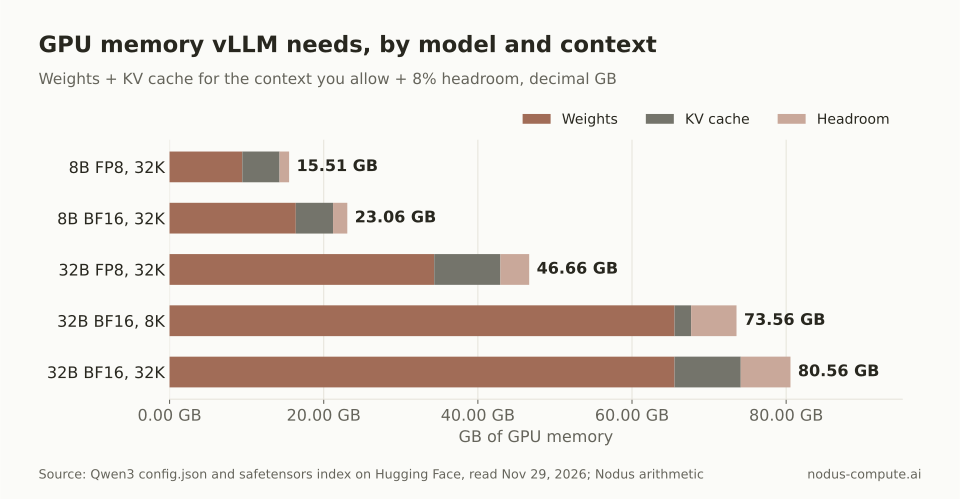 For the 32B model, the context limit you set decides whether it fits on an 80 GB card.
Two rows deserve a second look. Qwen3-8B in BF16 needs 23.06 GB, which squeezes under 24 GB on paper but leaves under a gigabyte spare, so we skip 24 GB cards and take a 48 GB RTX A6000, which is listed below the 32 GB RTX 5090 at $0.48/hr. Qwen3-32B in BF16 needs 80.56 GB at 32K tokens and 73.56 GB at 8K, so --max-model-len 8192 is the difference between an A100 80 GB and a 96 GB card.
The 32B FP8 row fits a 48 GB card with under 1.4 GB to spare. If your traffic needs that full context with more room, take the 80 GB A100 instead. The RTX 3090, RTX A6000 and A100 are Ampere cards without FP8 tensor cores, so, as the vLLM FP8 docs describe, vLLM runs FP8 checkpoints there as weight-only W8A16 with Marlin kernels. Memory is the same; activations run in 16-bit. If you want native FP8 speed, the L40S is the 48 GB Ada card, listed at $0.793/hr.
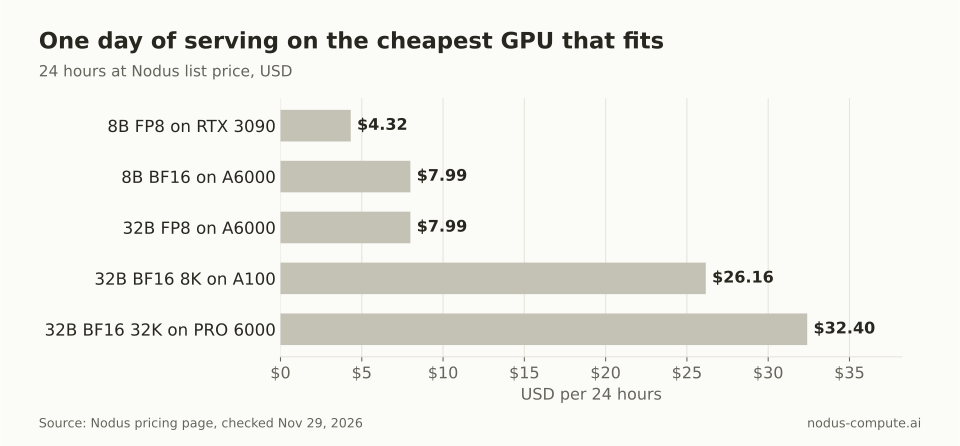 Trimming context moves Qwen3-32B in BF16 down a GPU tier: $26.16 a day instead of $32.40.
Our decision rule: compute the memory for the longest context you will really serve, pick the cheapest GPU with at least 1 GB to spare, and move to a bigger card only when quantization or a lower --max-model-len cannot close the gap.
Why does the vLLM container fail to start?
Section titled “Why does the vLLM container fail to start?”The container cannot see a GPU
Section titled “The container cannot see a GPU”If Docker rejects --gpus all or reports an unknown nvidia runtime, the host lacks the NVIDIA Container Toolkit. Install it, then register it with Docker and restart, as NVIDIA’s guide shows:
sudo nvidia-ctk runtime configure --runtime=dockersudo systemctl restart dockersudo docker run --rm --runtime=nvidia --gpus all ubuntu nvidia-smiThe last line is NVIDIA’s sample workload. If it prints your GPU, vLLM will see it too.
The host driver is older than the image
Section titled “The host driver is older than the image”The vLLM image ships CUDA compatibility libraries. On select datacenter GPUs with an older driver, the vLLM Docker docs say to add --env "VLLM_ENABLE_CUDA_COMPATIBILITY=1" rather than upgrading the driver.
Shared memory errors with more than one GPU
Section titled “Shared memory errors with more than one GPU”PyTorch moves tensors between processes through shared memory, most heavily under tensor parallelism. If you dropped --ipc=host, add it back or set --shm-size. The vLLM troubleshooting page also lists an unmounted /dev/shm as one cause of NCCL setup failures.
Out of memory, or the context does not fit
Section titled “Out of memory, or the context does not fit”This is the table above showing up at runtime. The memory guide lists the fixes in rough order of cost: a lower --max-model-len, fewer concurrent sequences with --max-num-seqs, a quantized checkpoint, or --tensor-parallel-size across more GPUs. --max-model-len auto picks the longest context that fits.
A gated model returns an access error
Section titled “A gated model returns an access error”Models such as Llama 3.1 8B Instruct are gated. You must request access on the model page, and Hugging Face grants it to individual users, not to whole organizations. The HF_TOKEN you pass must belong to the user who was approved.
Can you run vLLM in Docker on Windows?
Section titled “Can you run vLLM in Docker on Windows?”Yes, through WSL 2, and only with an NVIDIA GPU. The vLLM install docs state that vLLM does not support Windows natively and point to the Windows Subsystem for Linux. Docker Desktop passes NVIDIA GPUs to Linux containers with --gpus only on its WSL 2 backend, and needs current Windows, a WSL-capable NVIDIA driver and wsl --update.
Docker’s own check, docker run --rm -it --gpus=all nvcr.io/nvidia/k8s/cuda-sample:nbody nbody -gpu -benchmark, uses --gpus=all alone. If Docker Desktop rejects --runtime nvidia in the vLLM command, drop that flag and keep --gpus all. WSL also gets half the machine’s RAM by default, per the same vLLM docs, which matters while large weights load.
How do you run the same vLLM image on Nodus?
Section titled “How do you run the same vLLM image on Nodus?”Nodus runs any public registry image as a Job, so the same vllm/vllm-openai image works without the host setup above. The Images guide covers public, private and uploaded images. Install the CLI and sign in, store your Hugging Face token as a Secret, then start the server:
pip install nodus-computenodus loginnodus secret create hf-token --from-literal HF_TOKEN=hf_xxx
nodus run --name qwen3-8b --gpu A6000 --image vllm/vllm-openai:v0.34.0 \  --secret hf-token --no-source --interruptible never \  --disk 100Gi --timeout 8h --max-cost 5 -d \  -- vllm serve Qwen/Qwen3-8B --max-model-len 32768
nodus logs -f job/qwen3-8bnodus port-forward job/qwen3-8b 8000
The curl and Python tests from earlier work unchanged against localhost:8000. Every nodus run flag comes from its reference page. We pass the full vllm serve command after --, and --interruptible never keeps a serving process off capacity that can be reclaimed. --timeout 8h caps this test at 8 hours, which is $2.66 at the RTX A6000 list price, and --max-cost 5 is a hard spend cap on top.
Three Docker flags have no equivalent because Nodus handles them. The GPU arrives through --gpu. The container runtime contract sizes /dev/shm at half the container’s memory limit, so there is no --ipc flag. And port forwarding reaches a server on the container’s localhost through your signed-in session, so nothing is published to the internet.
We built this command from the documented flags and have not timed a cold start for this post, so watch the log until the server is ready. For a server that should scale and restart faster, what is vLLM shows the Functions route with GPU snapshots, and deploying an LLM to production covers the wider choices.
If you only need tokens from a popular open model, Nodus Inference (Beta) serves models such as GPT-OSS through one OpenAI-compatible API, with no container to run.
Should I use the latest tag of vllm/vllm-openai?
Section titled “Should I use the latest tag of vllm/vllm-openai?”For experiments it is fine. For anything you will rerun, pin a version such as v0.34.0, because engine defaults change between releases and a silent upgrade can change memory use or outputs.
Does vLLM in Docker work on AMD GPUs?
Section titled “Does vLLM in Docker work on AMD GPUs?”Yes, with a different image. vLLM publishes vllm/vllm-openai-rocm, which needs /dev/kfd and /dev/dri passed through instead of --gpus.
Why pass --no-source to nodus run?
Section titled “Why pass --no-source to nodus run?”By default nodus run uploads your current directory into the Job. The vLLM image needs nothing from it, so --no-source skips a pointless upload.
Can I keep model weights between Nodus runs?
Section titled “Can I keep model weights between Nodus runs?”Yes. Nodus Volumes can import from Hugging Face and mount into Jobs with --volume NAME:/path, so you can point vLLM’s download directory at a Volume instead of fetching weights each time.
Is one H100 better than two smaller GPUs for vLLM?
Section titled “Is one H100 better than two smaller GPUs for vLLM?”For a model that fits on one card, usually yes, since tensor parallelism adds traffic between GPUs. The H100 is listed at $2.60/hr on the Nodus pricing page against $1.09/hr for an A100 80 GB, so pay for it when you need its speed, not its memory.
More from the blog
training9 min read
Which open-source model is best to fine-tune in 2026?
Qwen3.5 and Gemma 4 are the best open models to fine-tune for most tasks in 2026. A task-by-size table, licenses, a decision rule and worked VRAM math.
Read the postimage-generation6 min read
How do you evaluate a text-to-image model beyond image quality?
A beautiful image can still fail the brief. Count usable results per request, check object relationships and compare models under the same selection budget.
Read the post